 COME
COMECOME Preference Controls: Finding a useful next screen
Change one app preference and observe its specific effect. You have reached the COME entry and want to know what the interface offers before choosing a task.
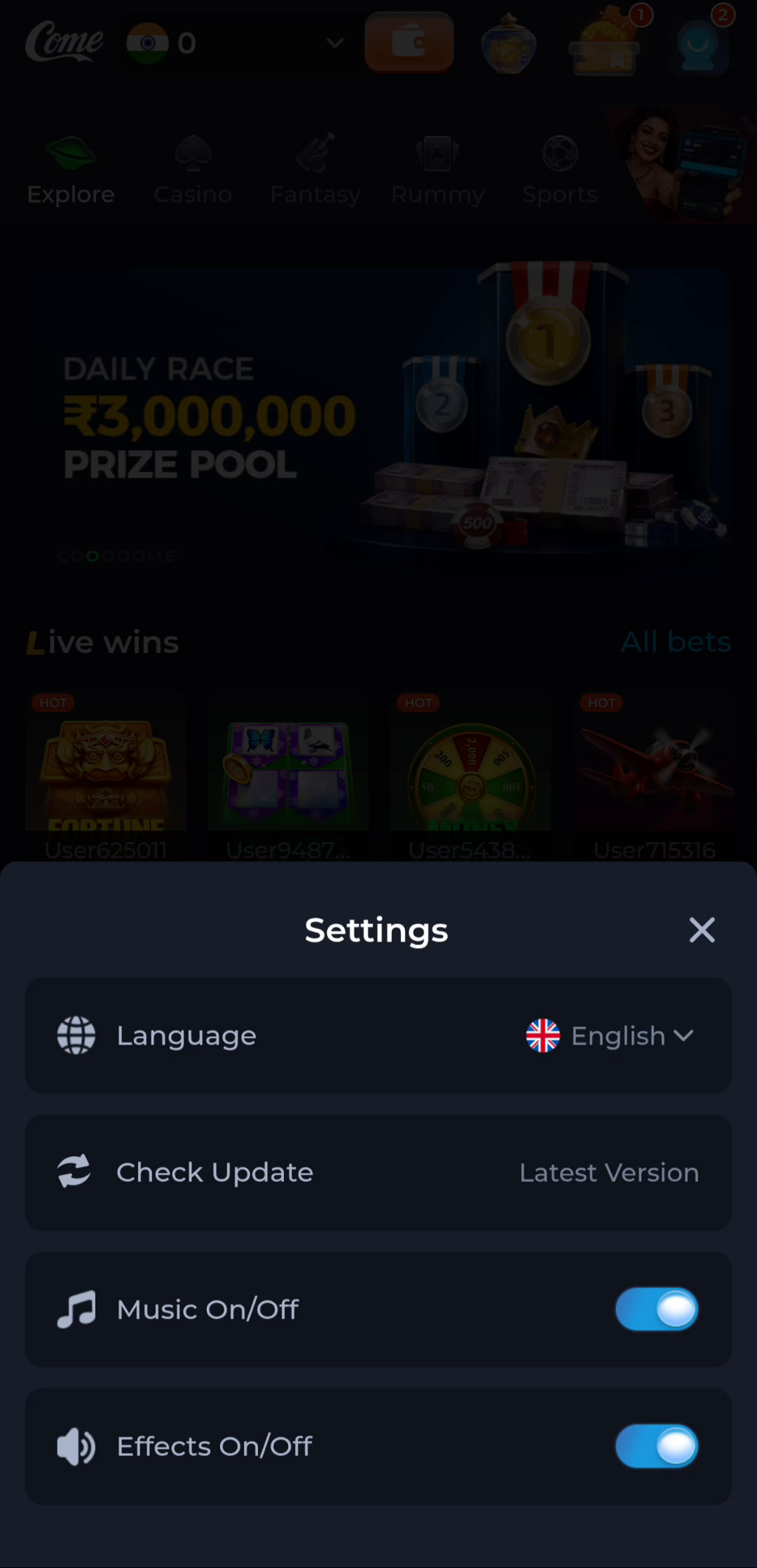
Find the settings panel
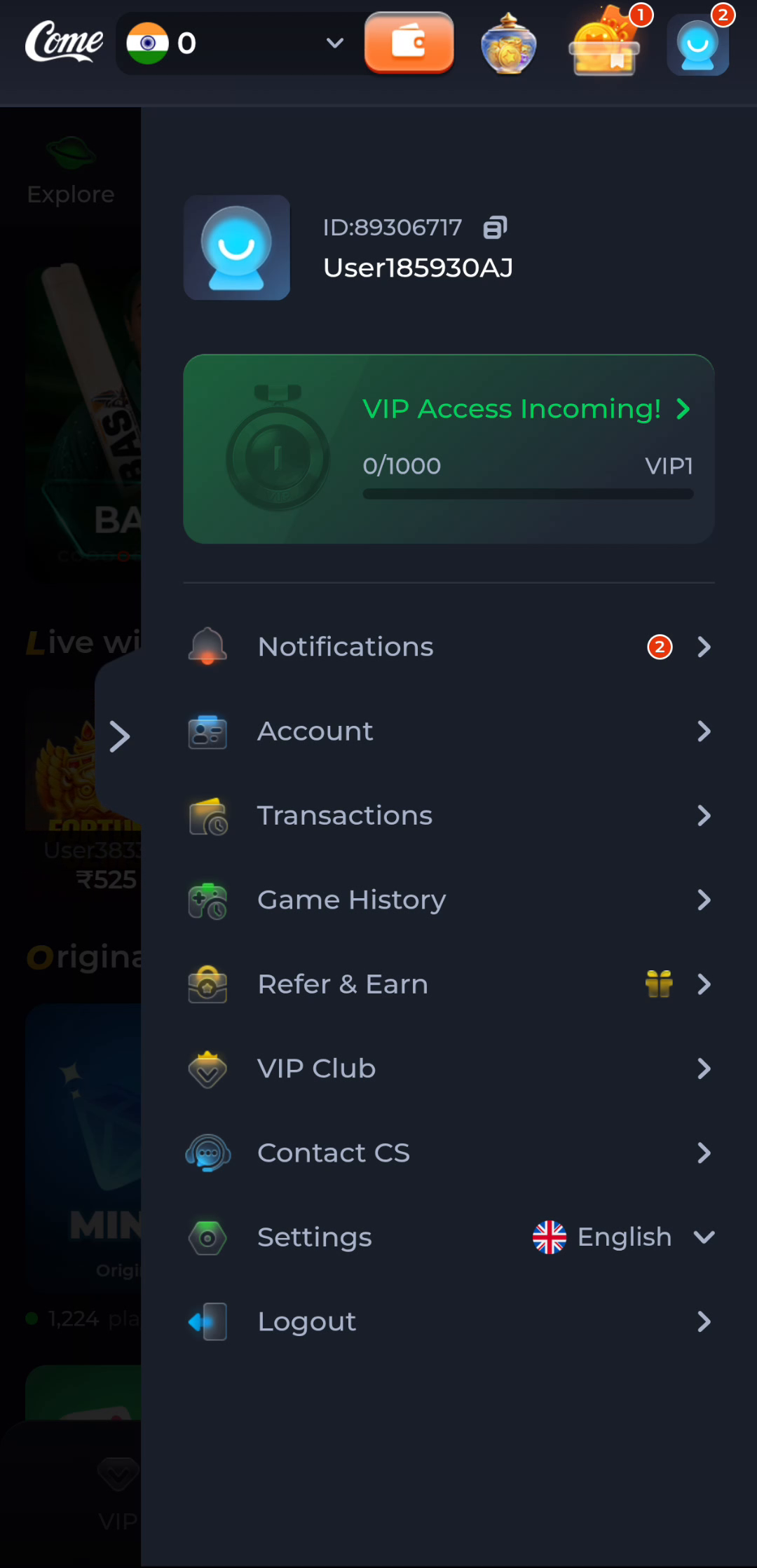
The COME profile menu includes Settings, and the panel shows Language, Check Update, Music On/Off and Effects On/Off. These are separate controls. Before changing anything, read the label and identify what you want to alter: display language, release information, background music or other sound effects.
The panel sits over the app interface. Use its visible close control to return to the underlying screen. If you are viewing COME in a browser, remember that a browser back action can change web navigation rather than close the particular panel you intended.
Change language with a clear return path
Open the Language control and inspect the choices actually offered in your current interface. The screenshot shows English selected. Open the selector in your own interface to see the current choices. Choose a language you can read and observe the resulting labels. Avoid changing unrelated account or phone settings at the same time.
Android's system language and an app's own language selector are different controls. A change in one does not prove that every part of the other will change. If a section remains in another language, note that section and the selected setting when asking for help.
Separate music from sound effects
Music On/Off and Effects On/Off affect different audio categories in the app. They are also separate from the phone's media volume and any connected Bluetooth or wired audio device. If sound seems absent, begin at a comfortable volume and inspect one control at a time. This helps identify which change actually altered the result.
If sound goes to headphones, the app's switch can still be on while the phone speaker is silent. Check the output route through your device's normal controls. Do not install an audio-fixer app or grant extra permissions simply to test a visible on/off control.
Treat Check Update as release information
The update row belongs to the app's software-maintenance route. It does not reset audio, change account identity or fix an unrelated payment record. Follow the current update prompt, compare the installed version where available and preserve the working installation if a conflict appears.
Finish by returning to the screen you intended to use and confirming the relevant preference. If the setting appears not to stick, record the app version, device and the exact sequence. A specific report is more useful than changing every switch or reinstalling immediately.
Apply the steps to this situation
For finding a useful next screen, begin with this specific task: change one app preference and observe its specific effect.
- Find the product Settings panel after the app opens.
- Choose one Language, Music or Effects control that matches the task.
- Compare the outcome before considering a separate Android setting.
App controls do not replace device controls. A silent session can involve product audio preferences, phone media volume or the active audio output, and each is a separate question. Likewise, Check Update is a release-information control, not a general reset for every preference issue.
Questions about this task
Is app music controlled only by Android volume?
No. The app switch, device volume and output route all have distinct roles.
Does Latest Version in a screenshot apply to my phone?
No. Use your own installation and current update result.
A related next step
Choose a destination by the information it contains. You have reached the COME entry and want to know what the interface offers before choosing a task.
COME Categories and Account Menu: Finding a useful next screen